Im Artikel „Einzelreservation mit Pauschalangebot“ wurden die Schritte zur Erstellung einer Einzelreservation mit einem Pauschalangebot beschrieben. In diesem Artikel erfahren Sie, wie Gruppenreservationen mit Pauschalangebot inklusive Zimmer erstellt werden, einschliesslich des Hinzufügens eines Pauschalangebots sowie der Zuweisung eines Pauschalangebots während einer Aufteilung an einen Gast oder eine Gruppenreservation (R) und weiterer relevanter Details.
Pakettypen
In unserem System stehen drei verschiedene Arten von Pauschalangeboten zur Verfügung:
- Zimmer inklusive – eine Auswahl, die Zimmer in Kombination mit Arrangements, Zimmer in Kombination mit Services oder Zimmer zusammen mit Arrangements und Services umfasst.
- Zimmer exklusive – eine Auswahl, die ausschliesslich Arrangements und Services beinhaltet.
- Nur Services – ein Pauschalangebot, das ausschliesslich aus Services besteht.
So erstellen Sie eine Gruppenreservation mit einem Paket inklusive Zimmer
Um eine Gruppenreservation mit einem Paket inklusive Zimmer zu erstellen, gehen Sie wie folgt vor:
- Beginnen Sie mit der Erstellung einer neuen Gruppenreservation – fügen Sie einen Gast hinzu und klicken Sie auf das Gruppen-Symbol – oder öffnen Sie eine bestehende Gruppenreservation.
-
Klicken Sie in der Reservationsmaske im Abschnitt Reservation details auf die Schaltfläche Pauschalangebot hinzufügen;
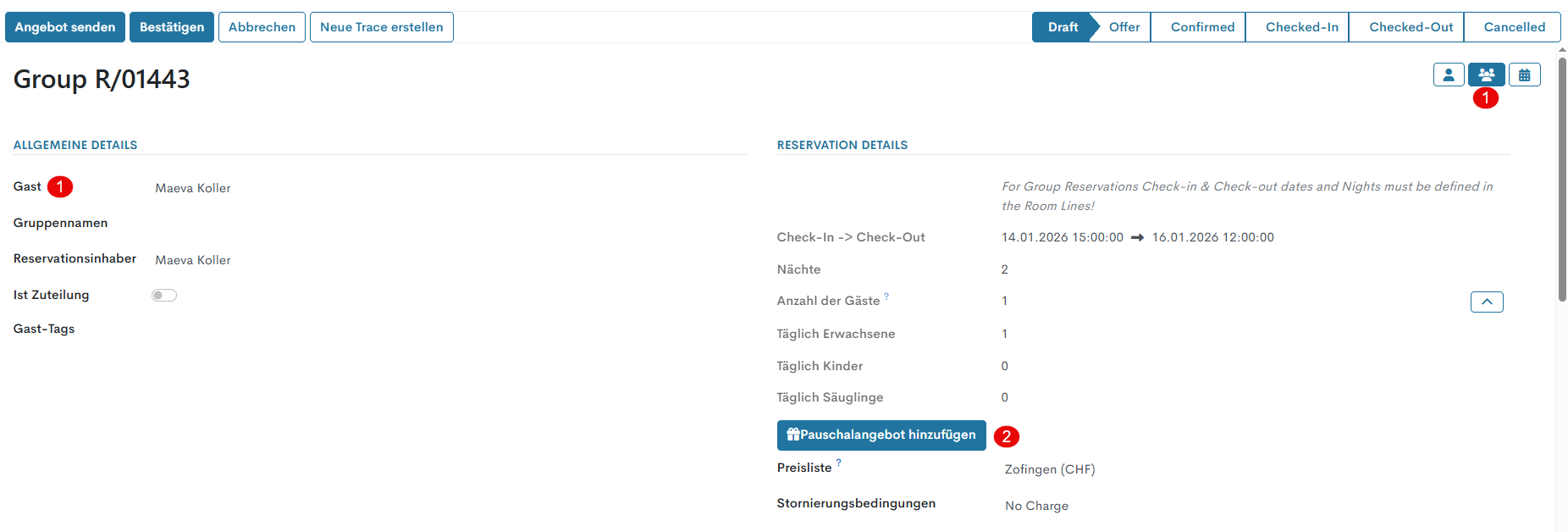
- Füllen Sie im Paketformular im Abschnitt Pauschalangebote Hinzufügen die folgenden Felder aus: :
- Menge – geben Sie die Anzahl der Zimmer an, für die das ausgewählte Pauschalangebot hinzugefügt werden soll.
- Pauschalangebot – wählen Sie das gewünschte Pauschalangebot aus der Dropdown-Liste aus.
- Startdatum und Enddatum – standardmässig übernimmt das System die Reservationsdaten aus dem Hauptformular der Reservationsmaske.
- E, K, S – definieren die Anzahl der Erwachsenen, Kinder und Säuglinge innerhalb eines Zimmers (Pauschalangebots).
Nachdem das Pauschalangebot ausgewählt wurde, erscheint rechts eine neue Spalte Inklusive Leistungen & Zimmer, in der die folgenden Felder ausgefüllt werden müssen:
- Zimmer und Arrangement – Wenn nur eine Zimmer-/Arrangement-Option vorhanden ist, füllt das System diese Felder automatisch aus. Enthält das Pauschalangebot mehrere Zimmer-/Arrangement-Optionen, wählen Sie in jeder Spalte eine Option aus dem Dropdown-Menü aus.
- UB zulassen – Ein Kontrollkästchen, das die Erstellung einer Reservation auch dann erlaubt, wenn dadurch eine Überbuchung entsteht.
- Dienstleistungen – Alle Service-Elemente des aktuellen Pauschalangebots werden automatisch als Tags in dieses Feld übernommen.
-
Preis
– Sobald alle Elemente (Zimmer, Arrangement und Dienstleistungen) hinzugefügt wurden, zeigt das System den Gesamtpreis für das aktuelle Pauschalangebot für den jeweiligen Zeitraum und die angegebene Anzahl E/K/S an.
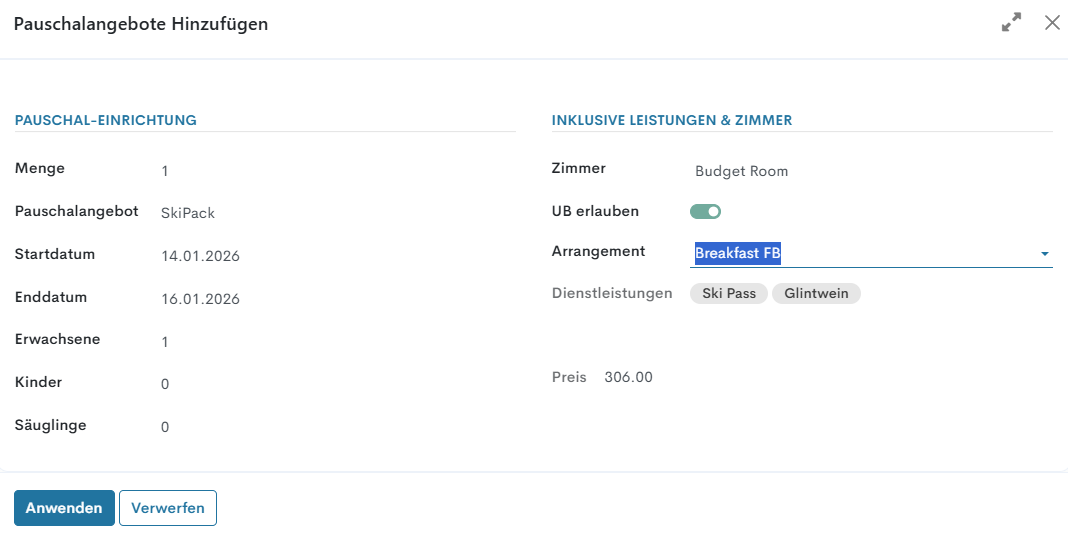
Sobald die Konfiguration abgeschlossen ist, klicken Sie auf die Schaltfläche Anwenden.
Momentan sind keine Kommentare vorhanden.
, um als erster einen Kommentar zu hinterlassen.