On the room plan, the system allows the user to access essential reservation information either through the hover-over widget or with a single click in the expanded pop-up.
Hover-over widget
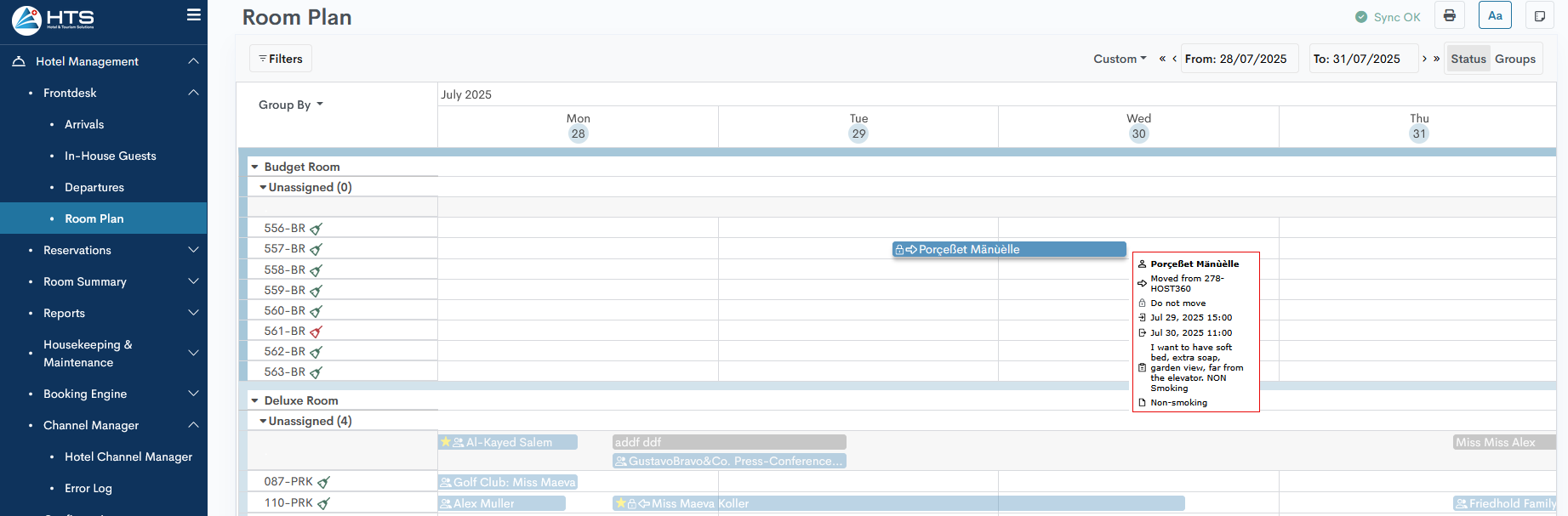
When hovering over any reservation, the system displays a widget containing the following information:
- Name and Type - The system shows rather individual or group icon and a reservation guest name (plus group name if available).
- Room Move - In the case of a room move, the system shows information about where the guest was moved to or from.
- Do not move - A lock icon appears when a room move is not allowed.
- Reservation Dates - Check-in and check-out date and time.
- Special Requests - Requests or notes left by the guest when creating the online reservation.
- Notes - Notes added by hotel staff during the reservation process or while the guest is staying at the hotel.
Reservation Pop-Up
When clicking on any reservation in the room plan, the system opens an extended pop-up displaying the following information:
- Name - Guest name for the selected reservation
- Status - Current reservation status: Draft, Offer, Confirmed, Checked-In, or Checked-Out.
- Arrival and Departure - Check-in and check-out date and time.
- Reservation number - Hotel guest or group reservation number.
- Room details - Current room type and room number.
- Guests - Number of A/C/I.
- Payment status - There are three options: Not Paid, Partially Paid, and Paid.
- Outstanding balance - The remaining amount to be invoiced and paid.
- Special requests - Requests or notes left by the guest when creating the online reservation.
- Arrangements - Arrangement type and name – for example, breakfast, half board, etc.
- Notes - Notes added by hotel staff during the reservation process or while the guest is staying at the hotel.
- Open related traces - If the reservation has any traces (airport pickup, additional amenities, etc.), this field will be visible, and clicking on it will open a list of traces assigned to this reservation. If no traces have been added, this field will be hidden from the pop-up.
In the top-right corner, there are icons that allow you to open the reservation form, close the pop-up, or mark the reservation as VIP. 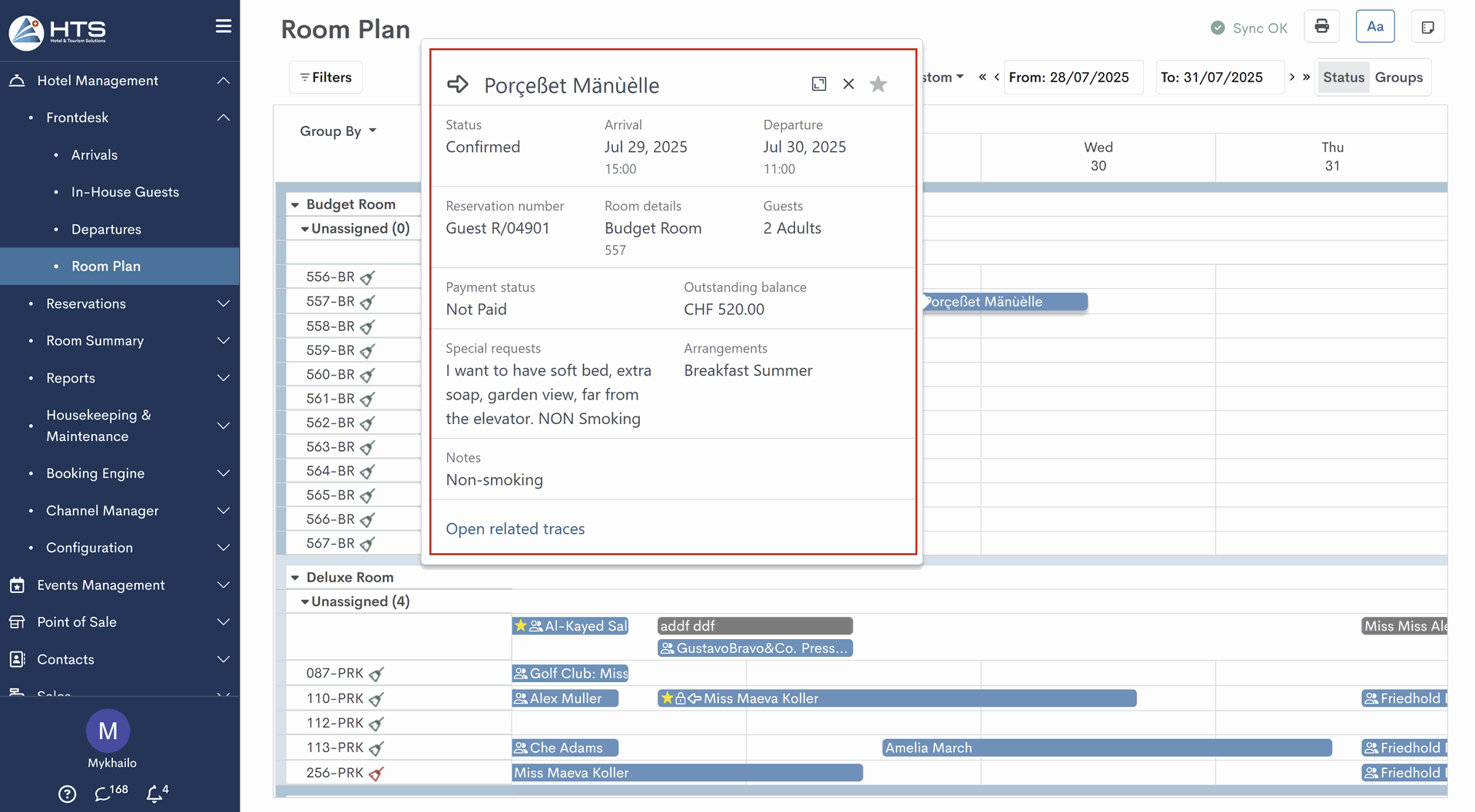
Bewertung
Momentan sind keine Kommentare vorhanden.
, um als erster einen Kommentar zu hinterlassen.